Free iPhone App Blockers

Best free app blockers
for iPhone

Start with the genuinely free options, then check exactly where each free plan stops. Fella is not included as a free recommendation.

The best genuinely free starting point is Apple Screen Time. It is included with iPhone and gives you App Limits, Downtime, reports, and family controls. ScreenZen is listed as donation-supported, while one sec offers a limited free option for one app.

“Free” can mean four different things: completely free, free with optional donations, usable free with a hard limit, or free to download before a subscription screen. This guide names the model explicitly. Confirm the live App Store listing and in-app purchase screen before choosing because plans can change. For a comparison that includes paid options, see the best iPhone app blockers by fit.

OptionCurrent free modelBest forMain catch
Apple Screen TimeIncluded with iPhoneApp Limits, Downtime, and basic restrictionsSelf-set limits can be easy to extend or change
ScreenZenDonation-supported free listingDelays, limits, schedules, and strict modesMore setup and choices than a simple blocker
one secFree for one appInterrupting one automatic app-open habitMultiple apps require the paid plan
JomoFree download; Plus is paidSchedules, breaks, and broader configurationVerify which desired features are currently free
OpalFree download; Pro features are paidFocus sessions and screen-time toolingFree-plan limits and pricing can change

This is not a universal ranking. The best free tool is the one whose free boundary still covers your actual problem after a week.

Apple Screen Time: best built-in free option

Screen Time is already on the iPhone. It offers daily App Limits, scheduled Downtime, Always Allowed apps, Content & Privacy Restrictions, reports, and family controls. There is no separate app subscription.

It is the right first test if you want a 30-minute social allowance or bedtime schedule. Use App Limits for a daily allowance. For scheduled restricted hours, use Downtime and turn on Block at Downtime. For a child, use Family Sharing rather than setting controls only on the child’s device.

The weakness for adult self-control is ownership: if you control the settings, you can change the rule. Screen Time is free and broad, but not automatically strict. If that is the gap, see a Screen Time alternative for stricter app blocking.

ScreenZen: best configurable donation-supported option

ScreenZen’s current US App Store listing calls it a free, donation-supported screen-time blocker. It lists delays before opening, short-use interruptions, app goals, blocking after a limit, schedules by day and time, custom messages, and stricter blocks based on time, opens, or Screen Time.

That range is unusually strong for a no-subscription listing. It suits someone willing to tune rules and experiment with several kinds of friction. The tradeoff is complexity: a large rule set can require more setup than a single all-day rule.

Read the live ScreenZen App Store listing before installing; donation options and features can change.

one sec: best limited-free option for one app

one sec is built around interrupting an automatic open with a pause and optional follow-up intervention. Its current listing says the free version can be used with one app; protecting additional apps requires Pro.

That makes the free plan useful when one app clearly dominates the habit. It is less suitable if Instagram, TikTok, Reddit, YouTube, and a browser all substitute for one another. It also adds a decision point rather than removing access completely.

Choose it when a moment of awareness is enough to change your action. Choose a stricter blocker when you routinely wait through the pause and continue.

Jomo and Opal: free downloads with paid tiers

Jomo and Opal are established freemium choices with focus and blocking features, but “Free · In-App Purchases” does not tell you that every advertised feature is available without payment. Jomo’s listing currently advertises Jomo Plus subscriptions and a lifetime purchase. Opal also offers paid upgrades.

Install one only after defining the requirement: number of protected apps, recurring schedules, strict mode, breaks, analytics, and device coverage. Complete onboarding, then inspect the upgrade screen before granting yourself confidence that the free plan solves the job.

A free trial is not a free blocker without a subscription. If a card or auto-renewing plan is required, set a reminder before the renewal date or choose an option whose free boundary is explicit.

Run a seven-day free-plan test

Day 1: choose only the two or three apps that create the most unwanted time. Days 2–6: note every bypass, substitute app, missed essential task, and setting you changed. Day 7: decide whether the blocker changed behavior or merely added taps.

Check five things before paying: whether blocks start automatically, how emergency access works, whether settings can be locked, how many apps the free tier covers, and whether deleting or disabling the tool is visible or restricted.

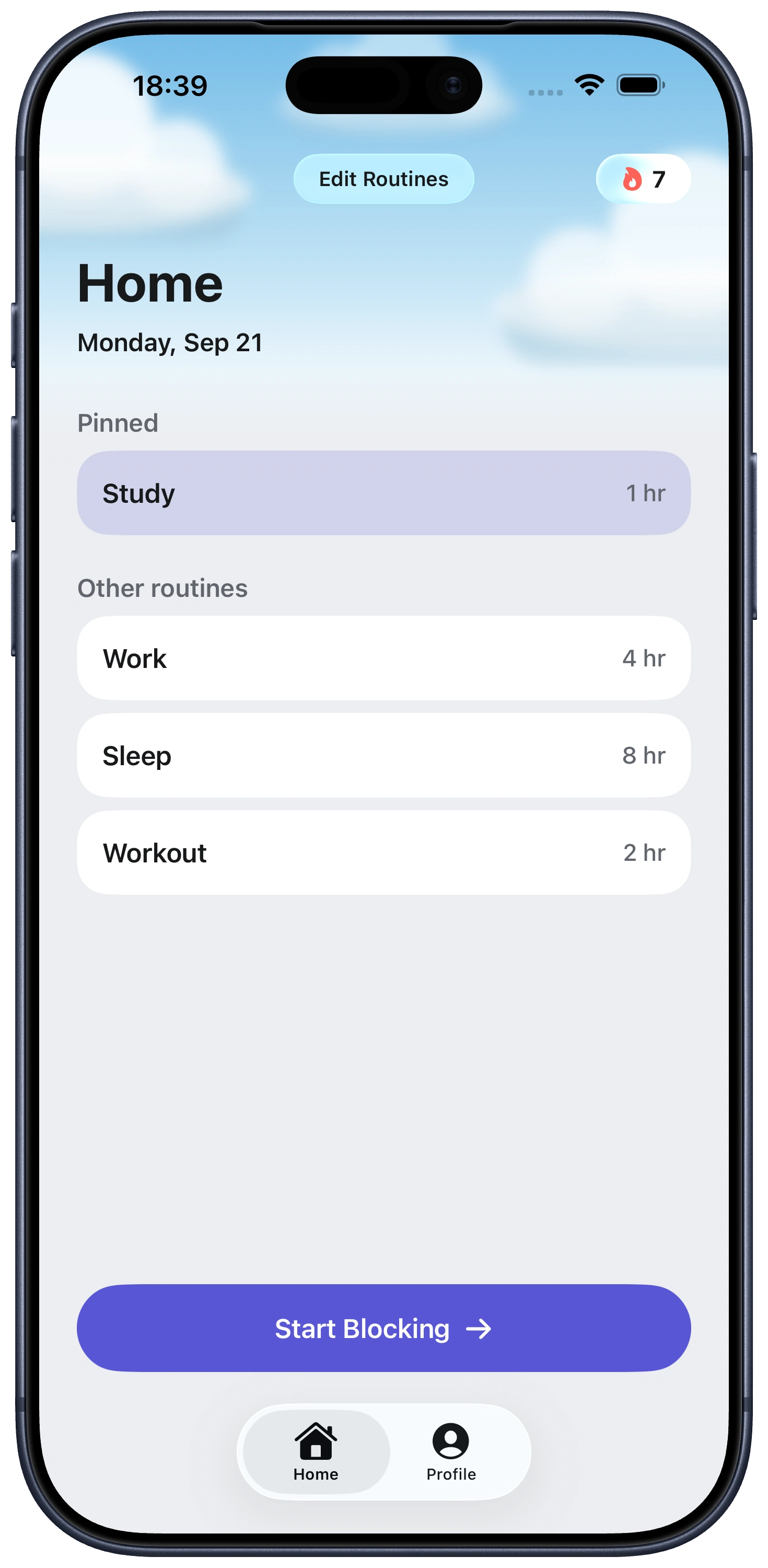
Fella is not included as a free recommendation. It is a paid product for a narrower need: selected iPhone apps remain blocked by default, and each blocking session includes one 5-minute emergency unlock with automatic relocking. It is not a schedule builder, analytics suite, or free-plan substitute.

Free iPhone app blocker FAQ

Apple Screen Time is built in. ScreenZen currently describes itself as donation-supported and free. Choose based on whether you want native limits or more configurable blocking.

Its current US App Store listing describes it as free and donation-supported; confirm the live listing because plans can change.

Its current listing allows free use with one app; multiple apps require the paid plan.

No. Strictness and loopholes vary, and the device owner may still control settings, recovery, or deletion.

No. Fella is a paid, narrow all-day blocker with one 5-minute emergency unlock per session.

For some people, yes, especially if awareness or light friction is all that's needed. If the free tier's limits keep leaving the same gap open, that's a sign the free plan isn't matched to the actual problem.

"Free" on an App Store listing often means free to download, with core features gated behind a subscription screen shown after onboarding. Always check the live in-app purchase screen, not just the listing description.

See Fella in action.

Own Your Attention
Starting Right Now