Block Snapchat

How to block Snapchat
on iPhone without deleting it

The quickest answer: set a Screen Time App Limit for a daily boundary, use Downtime for scheduled blocks, or use Fella when Snapchat needs to stay unavailable by default.

Yes, Snapchat can be restricted on iPhone without deleting the app or your account. Use Screen Time App Limits for a daily boundary, Downtime for scheduled hours, or a dedicated blocker such as Fella when Snapchat needs to stay unavailable by default. The right choice depends on whether you need a reminder, a schedule, or more friction before opening the app.

Muting notifications, hiding Snapchat, and deleting Snapchat are different actions. Notifications and the Home Screen can reduce cues, but Snapchat still opens from Search, the App Library, or a link. Deleting the app removes it from this iPhone; it does not itself delete a Snapchat account. Restricting access leaves the app installed.

Blocking affects the whole app. That includes messages, Stories, and Snap Map. It is useful when you want fewer compulsive checks, not when you need Snapchat available throughout the day. If you are setting a limit for someone else, use Screen Time family controls—not Fella, which is for your own device.


Use Screen Time to limit Snapchat

1. Open Settings, then tap Screen Time. If needed, turn on App & Website Activity. Choose App Limits, then tap Add Limit.

2. Select Snapchat and tap Next. Open the Social Networking category, select Snapchat, choose a daily time allowance, then tap Done. Selecting Snapchat on its own avoids sharing a limit with other social apps you still need.

3. Know what happens when the limit is reached. iPhone shows a Screen Time limit screen, but a reached App Limit can be ignored by default. It is a useful daily boundary, not a guarantee that you cannot continue. If that becomes your usual response, see how to stop ignoring Screen Time limits or use a stricter approach.

Use Downtime for planned blocks

Downtime blocks most apps during a schedule you choose. Go to Settings > Screen Time > Downtime, choose Scheduled, and select the hours you want Snapchat unavailable. Turn on Block at Downtime when you want restricted apps unable to open during that schedule.

Review Always Allowed, the schedule, and your passcode. Apps on that list remain available during Downtime, so check it if you expect a block and do not see one. Confirm you chose Every Day or the correct Customise Days schedule. A Screen Time passcode is useful when an adult is managing a child’s device; it does not make a self-set App Limit unbypassable.

Focus Mode can reduce notifications, not block Snapchat. It is helpful when alerts or banners trigger a check, but you still need an App Limit, Downtime, or blocker to restrict access.

What to consider before you block Snapchat

Streaks and direct messages may affect the decision. A streak can end if you and your friend do not exchange photo or video Snaps that day. Blocking Snapchat does not delete your account, but it does limit access to the app while the block is active.

Start with notifications if they are the cue. Turn off Snapchat notifications in Settings > Notifications > Snapchat. This can make checking less automatic, but it does not prevent you from opening the app.

Approach Good for Weak point
Delete Snapchat Removes the app from this iPhone. Does not delete your Snapchat account, but a streak can end if you and your friend do not exchange Snaps that day.
Screen Time App Limit Basic limits and awareness. You can choose Ignore Limit.
Turn off notifications Reducing notification cues. It does not restrict app access.
Fella Blocking Snapchat by default. Built for one 5-minute emergency unlock per blocking session, not open-ended access.

When a dedicated Snapchat blocker makes sense

A dedicated blocker is useful when you want Snapchat installed but not immediately available. That can be useful for studying, work, reducing screen time, or stopping automatic checks of messages, Stories, or Snap Map.

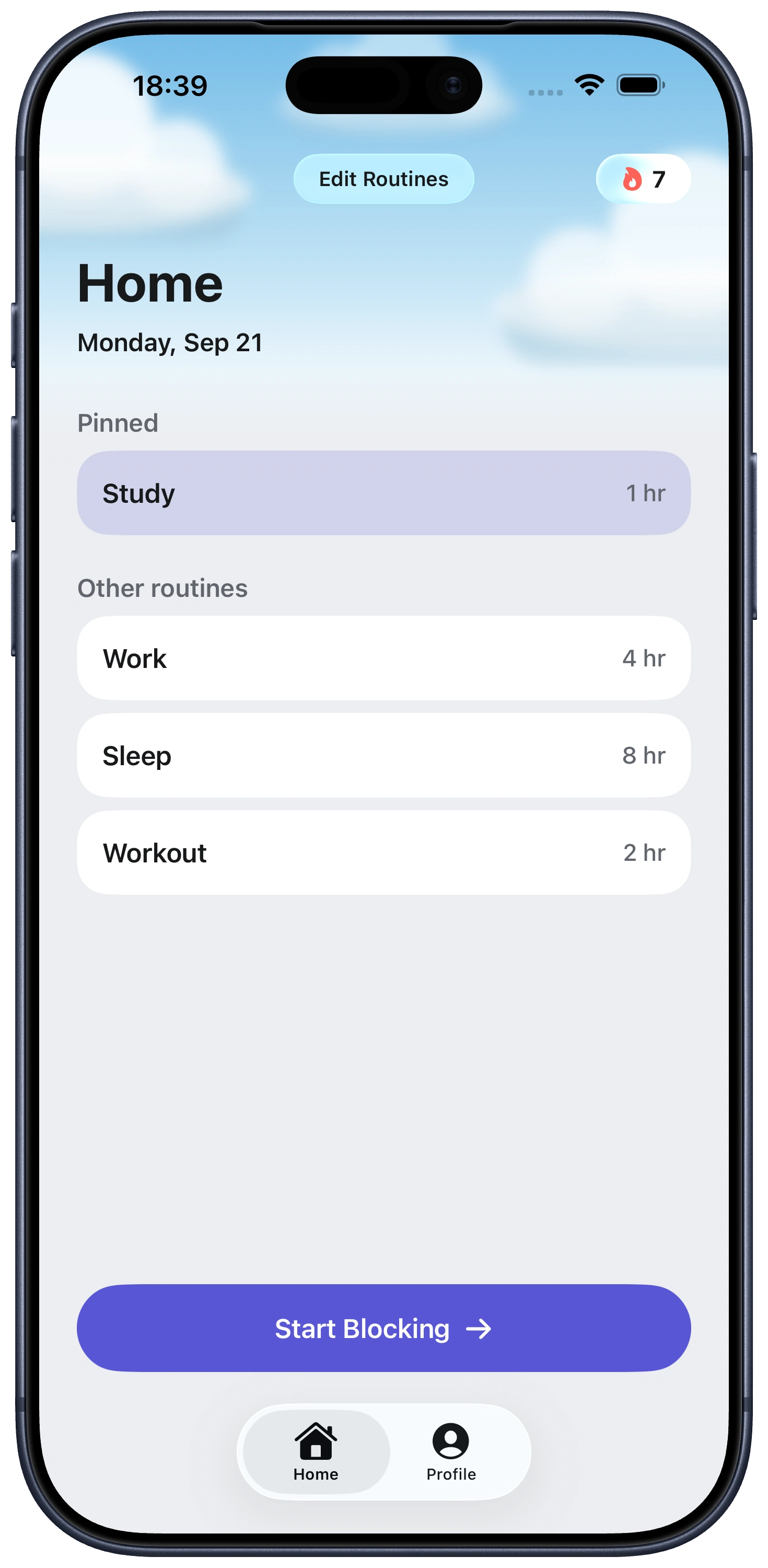
With Fella, add Snapchat to the apps you want blocked. It stays unavailable by default while apps you did not select remain accessible.

Use the emergency unlock for a practical need. Each blocking session includes one 5-minute emergency unlock. When the five minutes end, Snapchat locks again automatically.

Be realistic about streaks. Fella does not preserve a streak if you and your friend do not exchange a daily Snap. It is designed for people who want that access decision to be deliberate.

Use an age restriction to hide Snapchat entirely

An age restriction is stronger than an App Limit because it removes the icon, not just the time. Snapchat carries a 12+ App Store rating. In Settings > Screen Time > Content & Privacy Restrictions > Content Restrictions > Apps, set the allowed rating to 9+ or lower. Snapchat disappears from the Home Screen and cannot be reinstalled until the rating limit is raised again.

This affects every app above the rating you choose, not just Snapchat. Check which other apps you rely on before lowering the limit, since anything rated above your chosen threshold will also be hidden.

Block Snapchat on your child's iPhone

Set this up through Family Sharing, not directly on the child's device. On your own iPhone, open Settings > Screen Time > [Child's Name], then choose an App Limit for Snapchat, a Downtime schedule, or the age restriction above under Content & Privacy Restrictions. Managing it from your device means the child cannot remove the restriction without your Screen Time passcode.

Pick the level that matches the concern. An App Limit is enough for reducing time spent; the 9+ age restriction is the stronger option if you want Snapchat unavailable outright, since it also blocks reinstallation.

Fella is not built for this. It is a personal blocker for your own iPhone, with an emergency unlock you control. For a child's device, Apple's Family Sharing Screen Time controls are the right tool.

Who this is for

People who open Snapchat without thinking about it. If the app is the first thing you open during a work break, a study session, or at night, a default block can interrupt that pattern. See how to stop opening Snapchat automatically when the habit has become reflexive.

People reducing social-media screen time. Snapchat can stay installed for the occasions when you need it, while it is not one tap away during the rest of the day.

People who still need a way to reply. The one 5-minute emergency unlock per blocking session is for a specific message or task, without leaving the app reachable all day.

Block Snapchat FAQ

Use Screen Time App Limits for a daily boundary, Downtime for scheduled blocks, or Fella to keep Snapchat blocked by default with one 5-minute emergency unlock per blocking session.

No. Muting notifications and removing Snapchat from the Home Screen can reduce cues, but the app can still be opened from Search or the App Library. Use an App Limit, Downtime, or an app blocker to restrict access.

A streak can end if you and your friend do not exchange photo or video Snaps that day. Fella does not preserve streaks, so plan for that before using a whole-app block.

No. Fella restricts access to the Snapchat app on your iPhone; deleting a Snapchat account is a separate action in Snapchat's account settings. You can still use the app during your one 5-minute emergency unlock per blocking session.

Yes. Fella includes one 5-minute emergency unlock per blocking session for practical access, like replying to a close friend. When the unlock ends, Snapchat locks again automatically.

Yes. A dedicated app blocker can limit access to Snapchat while apps you do not select remain accessible. Screen Time also lets you choose which apps and categories to limit.

No. Focus Mode can reduce notifications and visual cues, but it does not stop Snapchat opening. Pair it with an App Limit, Downtime, or a blocker if you want to restrict access.

Yes. In Family Sharing, open the child's account in Screen Time on your own device, then set an App Limit, Downtime, or an age restriction under Content and Privacy Restrictions. A Screen Time passcode that only you know prevents the child from changing it. Fella is designed for personal app blocking on your own device, not parental monitoring of someone else's.

Yes. Fella blocks the whole app, not just messages, so it can reduce checks of Snap Map, Stories, and other parts of Snapchat. Each blocking session still includes one 5-minute emergency unlock for a real need.

Yes. Snapchat is rated 12+ in the App Store. In Settings, Screen Time, Content and Privacy Restrictions, Content Restrictions, Apps, set the allowed rating to 9+ or lower. Snapchat and any other app rated 12+ or higher will be removed from the Home Screen and blocked from reinstalling until you raise the rating limit again.

Delete the app, then go to Settings, Screen Time, Content and Privacy Restrictions, iTunes and App Store Purchases, Installing Apps, and set it to Don't Allow. This blocks new App Store installs system-wide, including Snapchat, until you turn it back on with your Screen Time passcode.

See Fella in action.

Own Your Attention
Starting Right Now