Nobody's walking by
your desk anymore.

Remote workers check their phones 96 to 205 times a day, with no coworker nearby to notice. Fella blocks distracting apps by default and gives you one 5-minute emergency unlock per session, so the desk stays quiet even when no one's watching.

Trusted by 500+ people

Matthew KFounder, FellaGuide

An office has built-in social friction against phone use: a manager who might glance over, a coworker mid-conversation, the general sense of being observed. Working from home removes all of it. Remote employees now average roughly 13 hours a day on screens, nearly double the screen time of on-site workers, and check their phones somewhere between 96 and 205 times a day.

The numbers behind that habit are specific. 82% of remote workers keep their phone within view during work hours, 76% respond to a notification within five minutes of getting it, and the average worker receives 63.5 notifications a day from messaging and email alone. 74.7% of US remote workers report scrolling social media while on the clock, and 41% admit to roughly three hours a day of personal phone use, which tracks with a measured 22% decline in performance scorecards for that group.

Why "just don't check it" doesn't hold up at home

An office schedule comes with built-in transitions, a commute, a lunch break away from your desk, a walk to a meeting room, that naturally separate work from everything else. Remote work collapses those transitions. The same room holds your laptop, your phone, and every non-work app you own, with no physical boundary marking when you've stepped away from the task.

Willpower has to do the job that environment used to do, and willpower is a limited resource that depletes over the course of a workday. By the afternoon, the same discipline that held at 9am is running on empty, which is exactly when phone checking tends to spike.

63.5 notifications a day is a lot of small permissions

Each of those 63.5 daily notifications is a small, individually reasonable-seeming permission to look at your phone. A calendar reminder, a Slack mention, a text from a friend, none of them feel like a problem on their own. The trouble is what happens after: once the phone is in your hand for a work notification, the other apps are right there too.

76% of people respond to a notification within five minutes, which means the phone is being picked up dozens of times a day regardless of whether the notification was work-related. Turn off distracting workday notifications for specific apps, but that alone does not change the underlying habit of reaching for the phone as a default reflex between tasks. Use these steps to break the reflex to open distracting apps.

Why Do Not Disturb and app limits fall short

Do Not Disturb silences notifications but doesn't stop you from opening an app on your own, and Screen Time app limits can be dismissed with a single tap on "Ignore Limit." Both require you to actively maintain the boundary every day, which is the same willpower problem remote work already strips away.

Fella keeps selected apps blocked by default using Apple's Screen Time framework, so there's no daily setting to re-enable and no limit to dismiss. one 5-minute emergency unlock per session covers a genuine need, and it locks itself back up automatically when the window ends. Work tools stay available. The apps that turn a five-minute break into forty minutes don't.

Setting up Fella for a remote work schedule

1. Block the apps that eat your breaks. Social media, shopping, and entertainment apps are the usual suspects, leave Slack, email, and calendar unblocked. If you are still choosing a tool, see our app blocker options for iPhone.

2. Let the block hold through the whole workday. No toggle to switch off because there's no manager around to notice.

3. Use the emergency unlock deliberately. One 5-minute window per session, saved for something that actually matters.

4. The apps lock again automatically. No reminder needed, no willpower required at 3pm when it's already running low.

Fella, up close.

  • Built with Apple’s Screen Time controls.
  • One 5-minute emergency unlock per session.
  • Apps stay blocked by default.

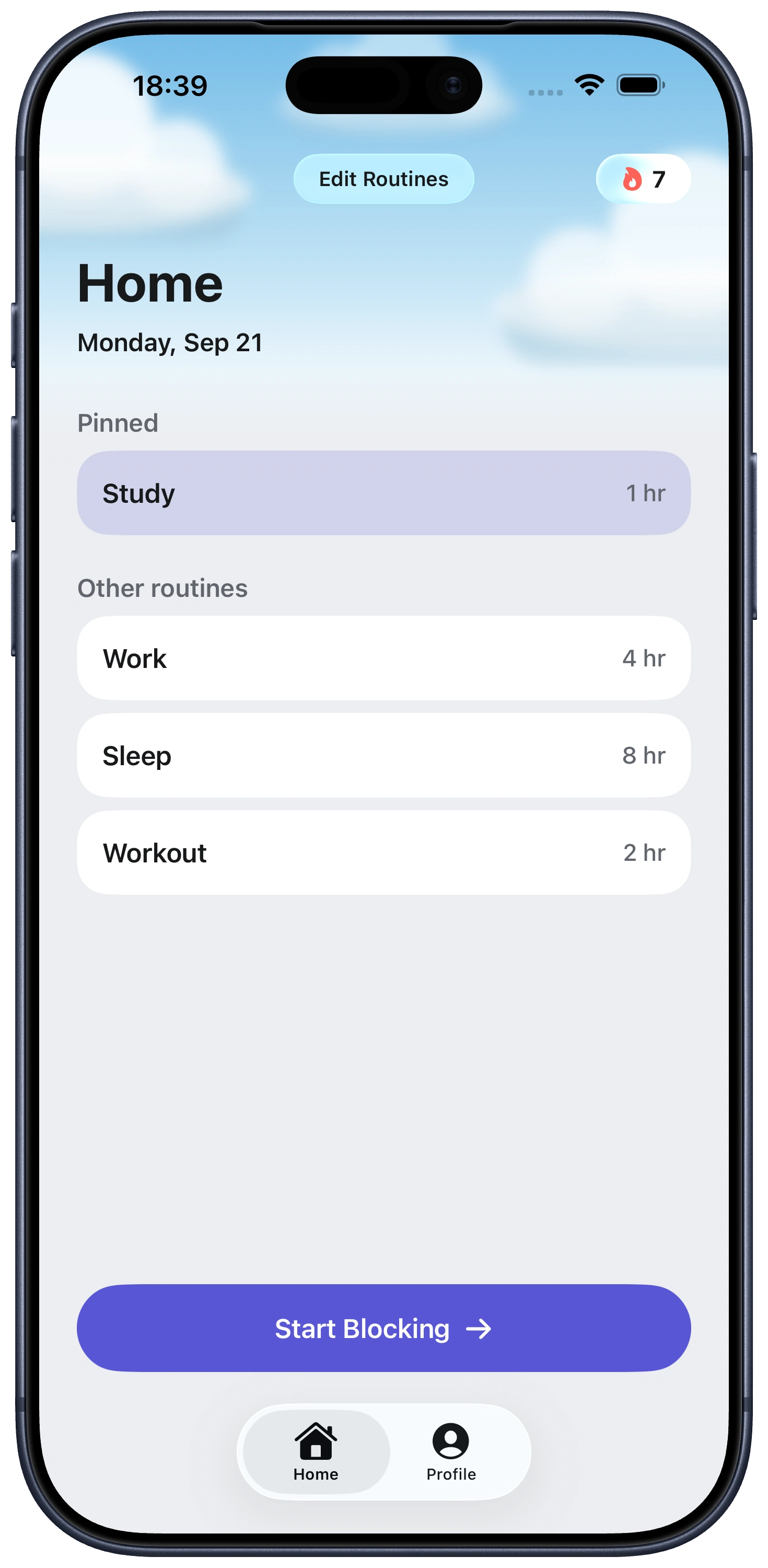
Everything you need to stay focused, right from Home.

Fella Home screen showing focus routines and session lengths

App blocker for remote workers FAQ

Own Your Attention
Starting Right Now

Trusted by 500+ people