To block all games, use the Screen Time Games category. Go to Settings > Screen Time > App Limits > Add Limit and select Games. One limit then covers every game already installed and any game you install later, without naming them individually. Set a short limit, turn on Block at End of Limit, and add a Screen Time passcode. Full steps are on setting App Limits.
To block specific games, expand the category and tick only those. This is usually the better choice, because one or two titles tend to account for the whole problem while the rest sit unopened.
Delete the game if you are finished with it. This is the cleanest option when there is no reason to keep the app or its local data. But reinstalling remains possible, and deletion can feel too final when you still want occasional access. If you are still choosing a tool, see our iPhone app-blocking options.
Screen Time suits a time allowance; its weak point is the last second. App Limits and Downtime handle “thirty minutes per day” or “not after 10 p.m.” well, but the limit screen carries an Ignore Limit button that clears it in one tap, which is why a limit can be switched on and the game still opened. We cover that on ignoring Screen Time limits.
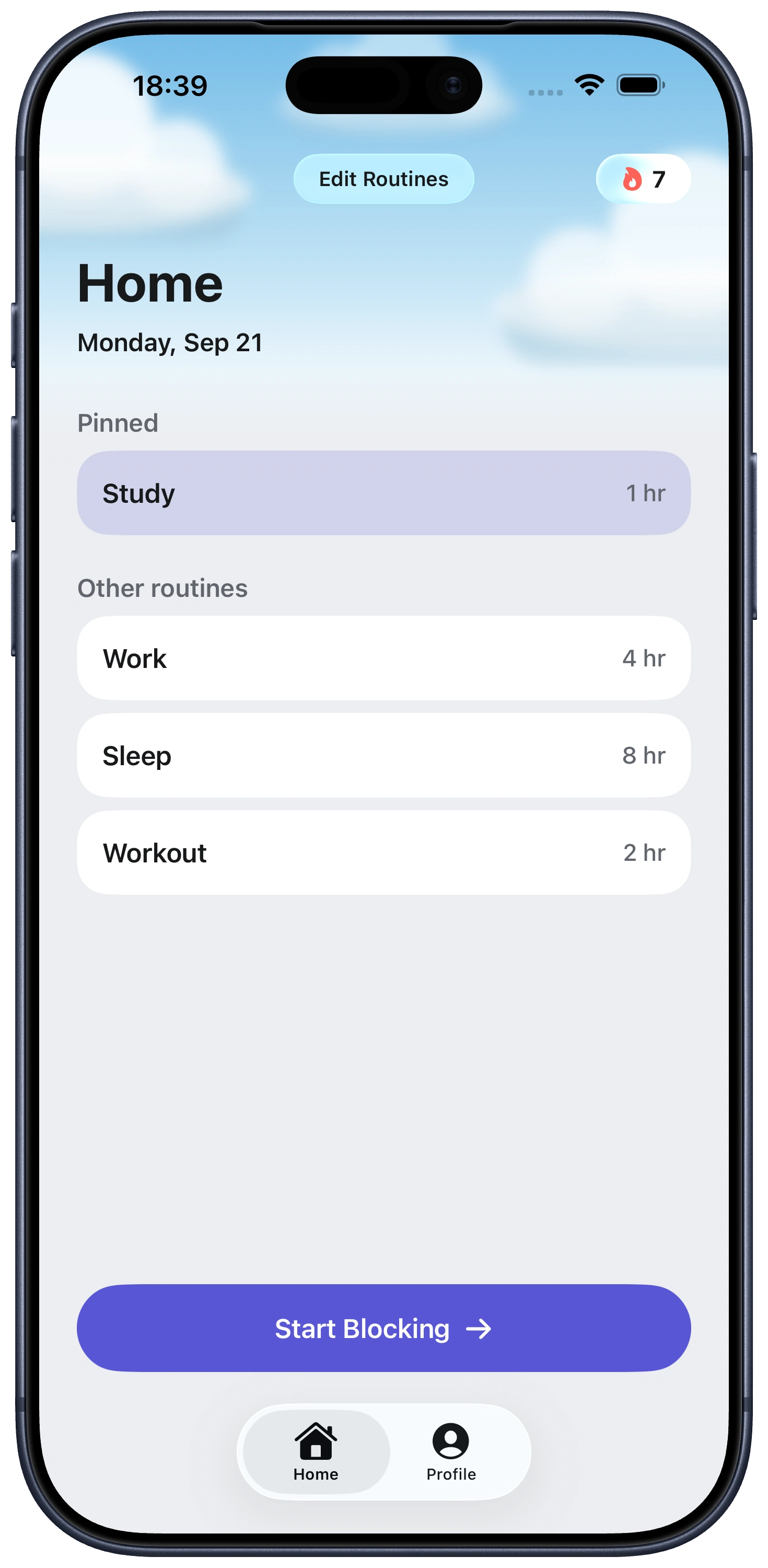
Use Fella when the game should be unavailable by default. Fella does not budget gaming minutes. Start a session yourself or use a routine to schedule one, with one 5-minute emergency unlock per session. That is intentionally strict and will not fit every player.
Block purchases separately when spending is the concern. Fella blocks access to selected apps; it is not a purchase-control system. Use Apple's App Store purchase restrictions and account controls if preventing downloads or in-app spending is the primary goal.