
Keep your conversations.
Stop checking the app.
Make Messenger unavailable on your iPhone without deleting your Facebook account, old chats, or shared media.

Trusted by 500+ people
Make Messenger unavailable on your iPhone without deleting your Facebook account, old chats, or shared media.
Trusted by 500+ people
Everything you need to stay focused, right from Home.
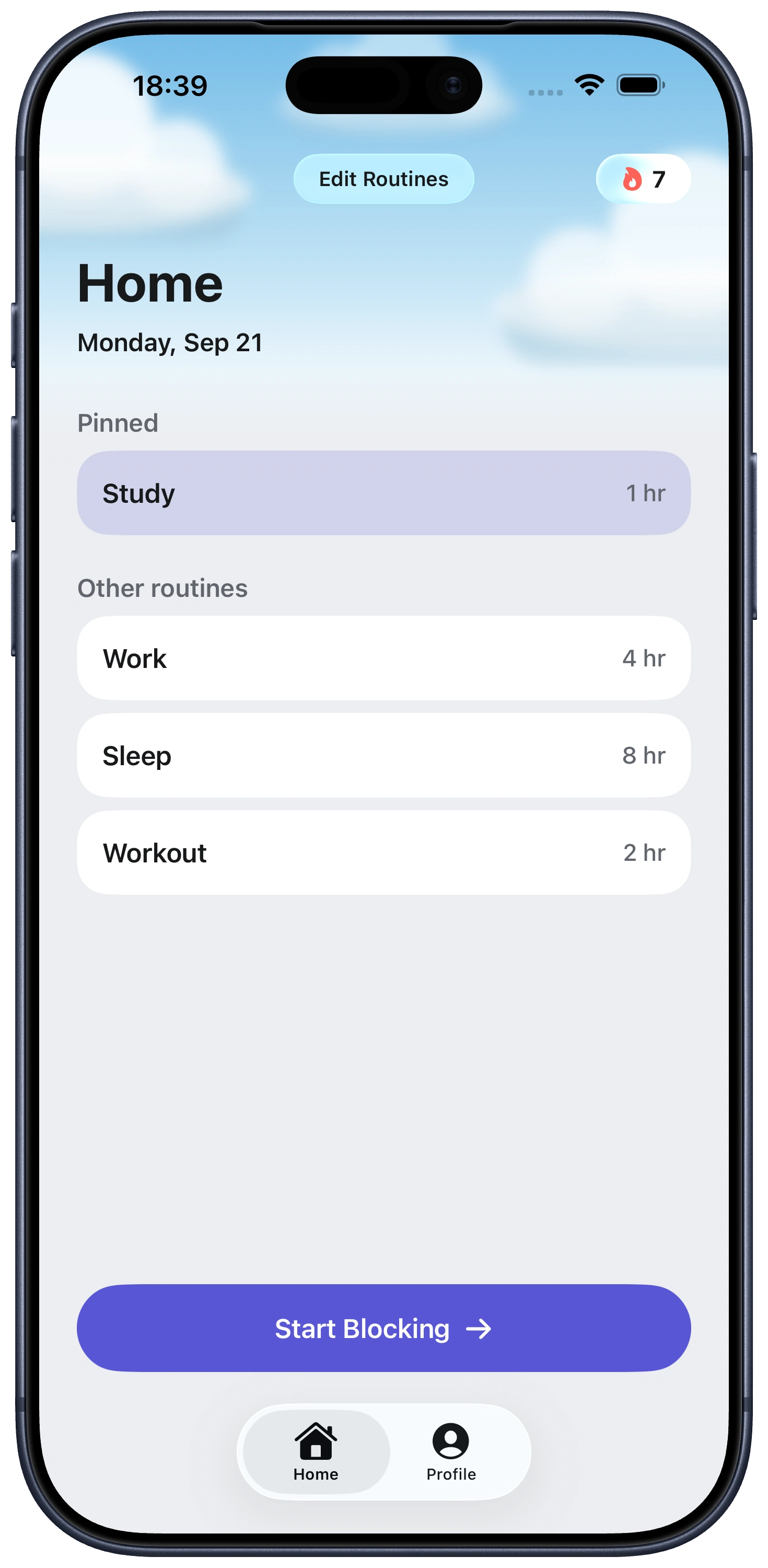
The fastest solution depends on what pulls you back. Mute one conversation if a group chat is the problem. Turn off Messenger notifications if badges and banners trigger checks. Use Screen Time for scheduled access. Use Fella when you want the whole app closed by default.
Messenger now holds more than direct texts: audio and video calls, group chats, communities, broadcast channels, Stories, Notes, files, and other discovery surfaces share one app. Opening it for a family reply can therefore expose several unrelated reasons to stay.
An iPhone app block is reversible and local. It does not erase your conversations or deactivate Facebook. The real decision is whether you can safely make Messenger unavailable between planned checks.
| Option | Use it when | Tradeoff |
|---|---|---|
| Mute a chat | One person or group creates most interruptions. | Other Messenger prompts and habitual checks remain. |
| Disable notifications | You want messages waiting silently until you choose to look. | Messenger stays one tap away. |
| Screen Time | You need daily minutes or a bedtime/work schedule. | You can edit or extend your own restriction. |
| Fella | You want Messenger blocked all day by default. | Calls and chats inside the app are unavailable except during one 5-minute emergency unlock per session. |
To remove alerts, go to Settings > Notifications > Messenger and turn off Allow Notifications. For less drastic cleanup, adjust notification types and mute noisy conversations inside Messenger.
Set a daily Messenger limit: open Settings > Screen Time > App & Website Activity > App Limits > Add Limit. Expand the category, select Messenger, choose the time, and tap Done.
Set hours without Messenger: open Screen Time > Downtime and choose the start and end. Review Always Allowed so Phone, Messages, navigation, health, and authentication apps remain available.
Screen Time is flexible, which is useful for changing workdays and family routines. That same flexibility is its weakness if “one more minute” has become automatic.
1. Choose Messenger in Fella. Select only the apps that cause the pattern. You can leave Phone, Messages, WhatsApp, email, and every practical tool open. For a broader look at available tools, see our iPhone app-blocking options.
2. Keep it blocked as the default. Fella is designed for an all-day boundary, not a focus schedule. There is no session you need to activate each morning.
3. Use the emergency unlock deliberately. Each blocking session includes one 5-minute emergency unlock. Decide whom you need to reply to before beginning.
4. Access ends automatically. Messenger relocks when the five-minute window finishes, limiting the chance that a message check expands into Stories, Notes, or channels.
Fella cannot block only the entertaining parts of Messenger while leaving calls and direct chats continuously open. Its value is the whole-app boundary.
Create an urgent-contact rule. Ask close family, caregivers, clients, or teammates to call or text when something cannot wait. Do not make a blocked Messenger account your emergency line.
Set expectations. A simple “I check Messenger once each evening; text for anything urgent” prevents delayed replies from feeling personal.
Batch low-priority replies. Use the one 5-minute emergency unlock per session for one prepared pass through important chats, or handle longer conversations from a computer if that suits your routine. Fella's block applies to the iPhone app, not every device.
If your work, co-parenting, or caregiving requires frequent Messenger calls, use notification cleanup or scheduled Screen Time instead. The strictest blocker is not automatically the safest choice.
Messenger's own settings only go as far as per-chat mute and notification controls. There's no dashboard showing total time in the app, no built-in reminder after a set number of minutes, and nothing that closes the app for you.
Facebook's "Your Time on Facebook" tool doesn't cover Messenger, since they're separate apps on iPhone. Messenger simply has no equivalent of its own.
That leaves Screen Time as the only native option, with the same Ignore Limit bypass every App Limit carries. Fella's one 5-minute emergency unlock per session has no comparable escape hatch.
Use Screen Time App Limits for a daily cap or Downtime for selected hours. Use Fella to keep the Messenger iPhone app blocked all day with one 5-minute emergency unlock per session.
No. Blocking access to the Messenger app does not delete your Facebook account, conversations, shared photos, or contacts.
Fella and Screen Time restrict the whole Messenger app, not individual features. If you need chats continuously, use Messenger's mute controls and avoid or hide nonessential surfaces where available.
Do not depend on calls inside a blocked app. Keep Phone or Messages available and tell important contacts to use that route for urgent communication.
Yes. Fella includes one 5-minute emergency unlock per session. Messenger automatically locks again when that window ends.
No. Messenger's own settings only cover per-chat mute and notifications, not total usage. Facebook's Your Time on Facebook tool does not apply to Messenger, since they're separate apps.
Marketplace messages route through Messenger, so blocking Messenger blocks that access too. They wait in your inbox and remain reachable during your one 5-minute emergency unlock per session.